Broad Watermark Detection
Identify corner logos, text, timestamps, translucent marks, and repeated patterns instead of assuming every watermark has the same shape.

 Whisk AI
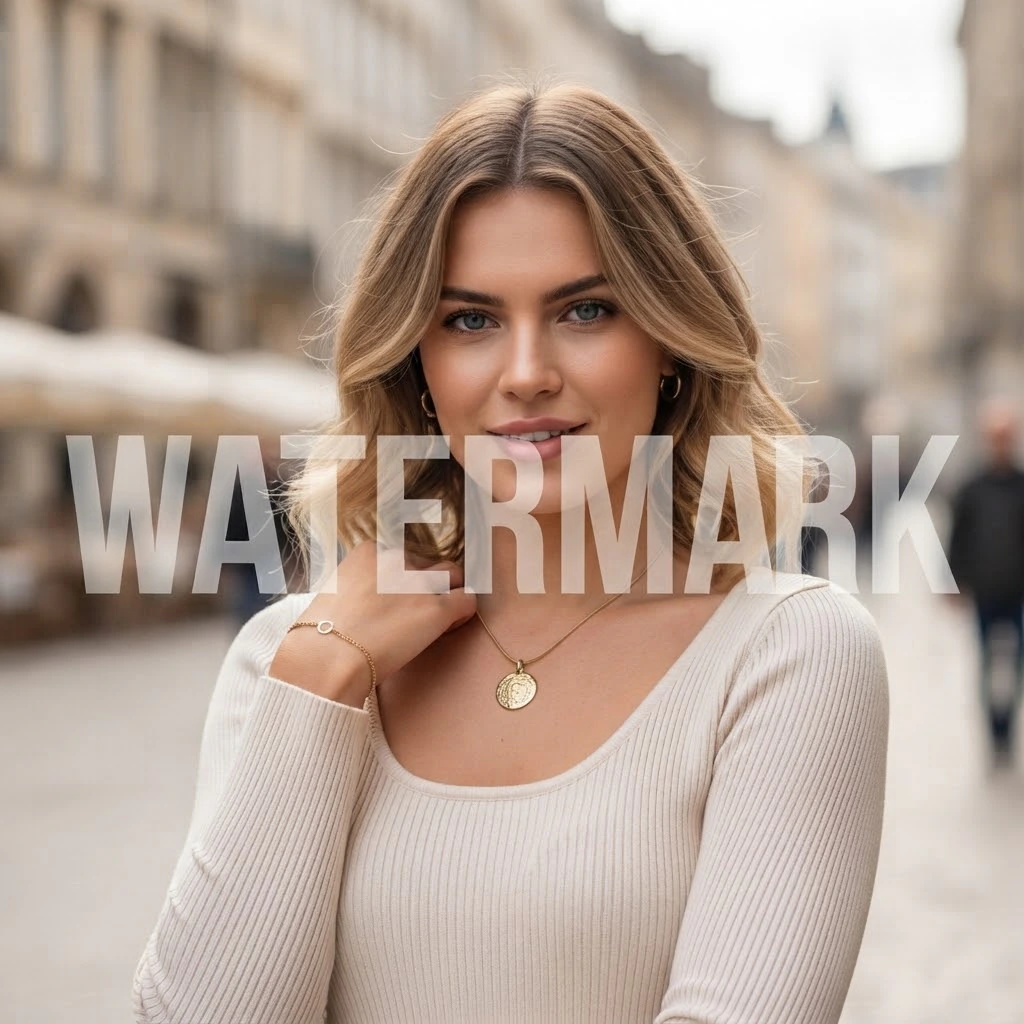
Remove logos, text, timestamps, and translucent overlays from images you own or are allowed to edit. The AI analyzes surrounding pixels to reconstruct texture, edges, lighting, and color, helping the cleaned area blend into the photo instead of looking blurred or smudged.

Reliable cleanup starts with accurate targeting, context-aware reconstruction, and a result you can inspect before using.
Identify corner logos, text, timestamps, translucent marks, and repeated patterns instead of assuming every watermark has the same shape.
Use surrounding texture, edges, lighting, and color to estimate what belongs behind the removed overlay.
Change the marked region while leaving unrelated areas untouched, avoiding a global blur or filter across the image.
Treat faces, fine lettering, architecture, and large full-screen marks as higher-difficulty repairs that deserve closer review.
Inspect repaired edges, gradients, and repeated textures at 100% zoom before downloading or reusing the result.
Use a clear four-step workflow to target the overlay, reconstruct the covered area, and check the repair before export.
Start with the highest-quality source you own, created, licensed, or have explicit permission to modify.
Identify the logo, text, timestamp, or repeated overlay so the edit stays focused on the intended region.
AI inpainting estimates missing texture, edges, light, and color from the surrounding visual context.
Compare the repair at full size, check difficult edges, and download only when the result looks consistent.
An AI watermark remover is an image-editing tool that detects unwanted overlays and uses inpainting to estimate the pixels hidden beneath them. Rather than blurring the marked area, it studies nearby texture, edges, lighting, and color to create a repair that fits the surrounding image.

Removal difficulty depends on the watermark's size, opacity, placement, and how much predictable visual information remains around it.

AI can keep the rest of an image intact, but the source file and final inspection matter as much as the removal model.

No model can see the exact pixels hidden by a watermark. It generates a visually plausible repair, so some images still need manual retouching or a better source file.

Dedicated AI cleanup reduces setup for routine marks, while manual retouching gives experienced editors more control over unusual details.
These four factors usually have more influence on the repair than broad claims about one-click or lossless removal.
Yes, many visible logos, text overlays, timestamps, and repeated patterns can be removed or reduced with AI inpainting. The result depends on the watermark's size, opacity, position, and the detail underneath it. Small marks on predictable backgrounds are usually easier than large marks covering faces, lettering, or unique objects.
An AI watermark remover identifies pixels likely to belong to the overlay, then analyzes surrounding texture, edges, lighting, and color. It uses image inpainting to generate a plausible continuation inside the marked region. This differs from simple blur, which hides the mark but often leaves an obvious soft patch.
AI can limit the edit to the marked region, helping the rest of the image retain its dimensions, color, and detail. However, no tool can guarantee a perfect result. Source resolution, compression, watermark coverage, and background complexity all affect quality, so inspect the repaired area at full size before use.
Common targets include corner logos, transparent text, timestamps, proof labels, signatures, and repeated diagonal patterns. Clear marks over predictable backgrounds are generally easier. Large full-screen overlays or marks covering faces, original lettering, and one-of-a-kind details are harder because the model has less reliable context for reconstruction.
Use an AI watermark remover for a faster first pass on routine logos, text, and timestamps. Choose Photoshop or another manual editor when you need pixel-level control over faces, typography, architecture, or high-value professional work. A practical workflow can start with AI and finish difficult areas manually.
Legality depends on ownership, permission, license terms, intended use, and local law. Remove watermarks only from images you created or are authorized to edit. Removing a copyright or ownership mark does not transfer rights or make the image free to reuse. If the situation is unclear, contact the rights holder or seek legal advice.